Media Library
All your media.
One place.
Store your business images, videos and documents in one place. Find what you need, reuse it whenever you want, and generate new images with AI, all inside Wisemelon.
AllImagesVideosDocuments
- AIspring-launch.pngJust saved
- summer-sale.pngImage · 1080×1080
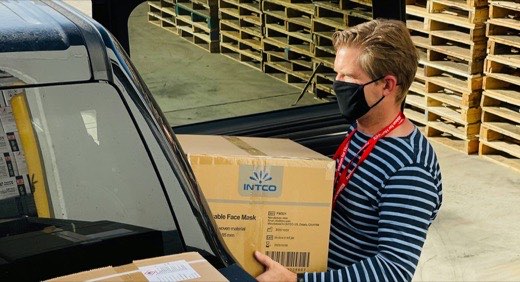 dispatch-day.jpgImage · 2.1 MB
 0:42open-day-tour.mp4Video · 0:42
- spring-market.pngImage · 1200×900
- PDFprice-list-2026.pdfDocument · 6 pages
 team-desk.jpgImage · 1.4 MB
- ux-workshop.pngImage · 1080×1350
Generate with AI
Create a premium product launch visual.
One central library
Stop searching.
Start creating.
Keep your business media organised in one central library. Save important files once and access them whenever you need them, without searching through folders or uploading the same assets again and again.
- spring-launch.png
- spring-market.png
 study-session.jpg
- spring-intake.jpg
- spring-sale-story.png
- spring-dispatch.jpg
- Store images, videos and documents.
- Find and preview saved media.
- Keep reusable assets together.
- Access your media whenever you need it.
Illustrative interface; supported formats, sizes and views follow the product.
Create with AI
Turn your ideas
into images.
Need a new promotional visual? Generate images with AI directly inside Wisemelon. Describe what you need and create visuals for your campaigns, products, promotions and business communications.
1Describe it
A premium launch visual for our new spring skincare bottle, on a soft green background with natural light.
Generate image2The result
3Keep it
Save to Media Library SavedCampaign creatives
4In your library
- Just saved
- Generate images from text prompts.
- Create visuals for different business needs.
- Save generated images to your Media Library.
- Reuse your creations whenever you need them.
Illustrative example; the image shown is an illustration of a result.
Ready when you need it
Create once.
Use it across your work.
Your media should be ready when your team needs it. Reuse saved images, videos and documents in supported Wisemelon features instead of searching for files or uploading the same assets again.
spring-launch.pngSaved in Campaign creatives
Campaign composer
Message template
Header imageHi {{1}}, the spring edition is here.
Webview editor
From campaign creatives to business documents,
keep your frequently used media ready to use.
Media can be selected wherever a Wisemelon feature supports it. Campaign Management Customer Journeys
Keep everything in order
Your media, organised
as your business grows.
As your business grows, so does the content your team creates. Keep reusable media together so it’s easier to manage, find and use whenever new campaigns or customer conversations come up.
- Product images64 items
- Campaign creatives38 items
- Videos12 items
- PDFDOCDocuments41 items
Illustrative collections and counts.
Simple from start to finish
From upload to reuse
in three steps.
-
1Save your media
Upload your existing images, videos and documents to Wisemelon.
-
2Generate new visuals
Use AI to create images for your business needs.
-
3Access and reuse
Find your saved media and use it wherever supported across Wisemelon.
What is Wisemelon Media Library?
Wisemelon Media Library is a central place to save, manage, and reuse business media, including images, videos, and documents.
Can I generate images inside Wisemelon?
Yes. You can use AI to generate images directly inside Wisemelon and save them to your Media Library for future use.
Can I reuse media without uploading it every time?
Yes. Save your media once and access it again whenever you need it.
What types of files can I store?
You can store business media such as images, videos, and documents, subject to supported file formats and size limits.
Can I use my saved media in campaigns?
Your saved media can be reused in the Wisemelon features that support media selection, helping you avoid repeatedly uploading the same assets.
Can I use AI-generated images later?
Yes. Save generated images to your Media Library so you can access and reuse them whenever needed.
Media Library
Everything you need to create
and manage business media.
Keep your media organised, generate new images with AI, and make your content ready whenever your business needs it.